
While AI is incredibly powerful at creating visuals, it can sometimes struggle with rendering text perfectly. You might occasionally see made-up words, misspelled labels, or jumbled letters on your ad creatives.
This is a common limitation of current AI image generation technology. However, WinningAds has built-in tools to help you correct these errors quickly.
Option 1: The “Remove Text” Button (Quickest Fix)
If the text on the image isn’t essential, the fastest solution is often to just wipe it clean.
-
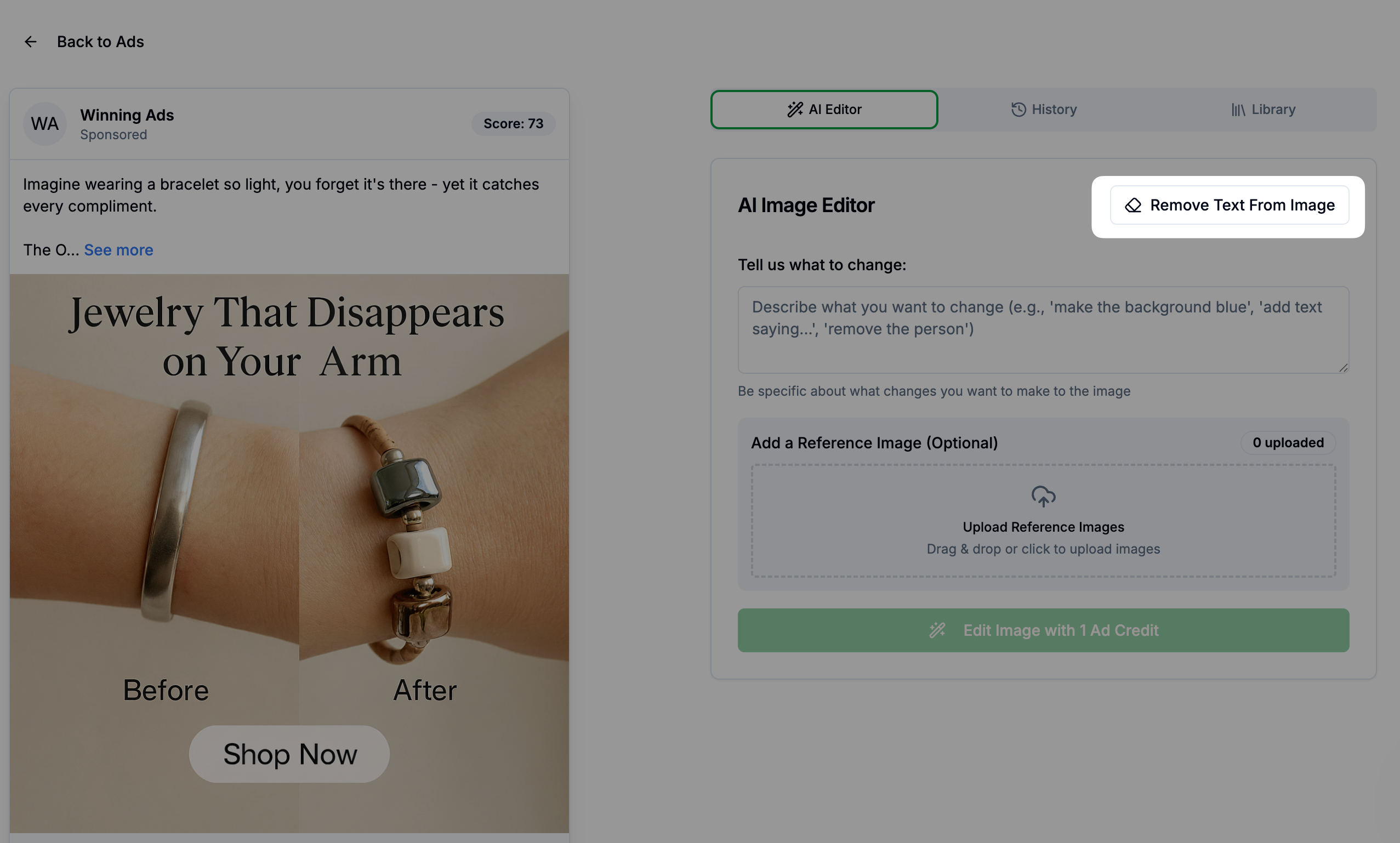
Click on the ad you want to fix to open the AI Editor.
-
In the top right corner of the editor, click the Remove Text From Image button.
-
The AI will attempt to erase the text and fill in the background.
This gives you a clean visual that you can use as-is, or you can overlay your own correct text using other tools if needed.
Option 2: Ask the AI to Correct the Spelling
If you want to keep the text but fix the spelling, you can instruct the AI to make the change.
-
Open the AI Editor.
-
In the “Tell us what to change” box, give a very specific instruction.
- Example: “Change the word ‘XYZ’ into ‘XYZ’”.
-
Pro Tip: If the AI is being stubborn, add the phrase “This is important” to the end of your prompt.
Option 3: Use the History Tab
If you try to fix a typo, but the result looks worse than before, you don’t have to start over.
-
Click the History tab inside the editor to see previous versions of your image.
-
Click Use on any previous version to revert the changes.
Need More Help with Editing?
For a complete guide on all the features available in our editor, please read our detailed guide: How to edit an ad
Note on Credits: We understand that AI errors can be frustrating. If you feel you have wasted credits trying to fix a stubborn typo that the AI just won’t correct, please reach out to our support team. We are happy to be flexible and refund credits in these specific situations.