How to Invite or Remove Team Members From Your Account
Written By Wilco
Last updated 10 months ago
Not every plan includes team access—but if you're on an Agency plan, you can easily collaborate with your team inside Winning Ads. This article walks you through how to invite new team members and how to remove them when needed.
🧑💻 Who Can Add Team Members?
Before you start, it’s important to know:
If you're on a Pro Plan, you'll see a red notice that says “Limit reached.” That means your current plan doesn't support additional users.
If you're on an Agency Plan, you can invite team members up to your plan limit (e.g. 10 users). Once you hit the limit, you’ll also see “Limit reached.”
✅ How to Invite Team Members
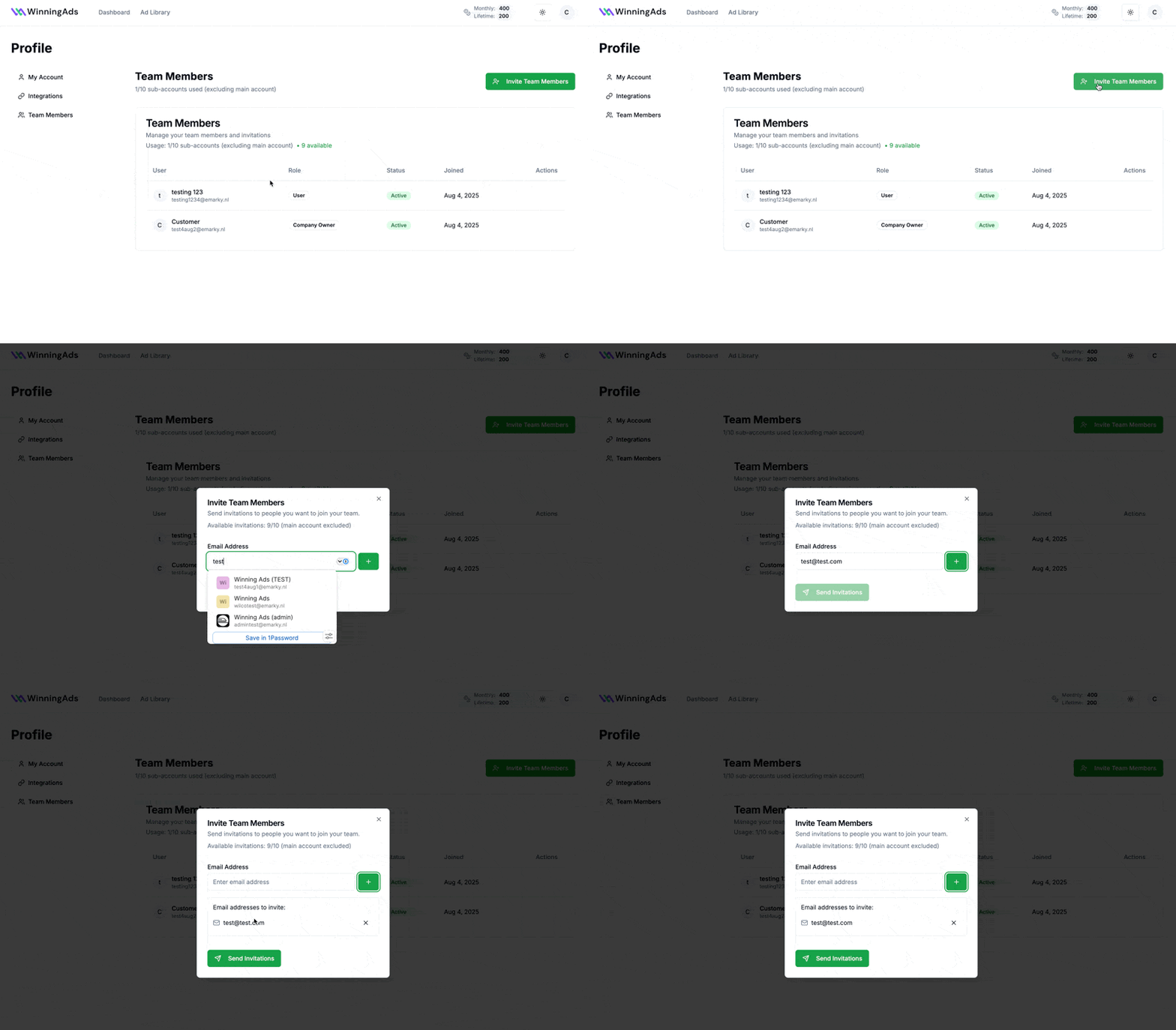
Here’s how to invite someone to your team:
Click your profile icon in the top-right corner
Select “Profile” from the dropdown
Go to the “Team Members” tab
Or visit: https://app.winningads.com/profile/teamClick the green “Invite Team Members” button
In the pop-up, enter the email address of the person you want to invite
Click “Send Invitations”
📨 What Happens Next?
The person you invite will get an email with a link to accept the invite
They’ll have 7 days to accept before the link expires
Once accepted, they’ll be added to your team and can access your account.
🚫 What “Limit Reached” Means
If you see a red “Limit reached” message, it means one of the following:
Your current plan does not support team members
You’ve used all of your available team slots