How to Connect Your Facebook Ads Account
Written By Wilco
Last updated 10 months ago
To publish ads directly from Winning Ads into your Meta (Facebook) Ads Manager, you’ll need to connect your account first. It only takes a minute — here’s how it works.
Step-by-Step: Connect to Facebook
1. Open Your Profile
Click on your profile picture in the top-right corner of the screen and select “Profile” from the dropdown.
2. Go to the “Integrations” Tab
Inside your profile view, click the “Integrations” tab from the left-hand menu.
Alternatively, go directly to:
👉 https://app.winningads.com/profile/integrations
3. Click “Connect Meta”
You’ll see a green button labeled “Connect Meta” — click it.
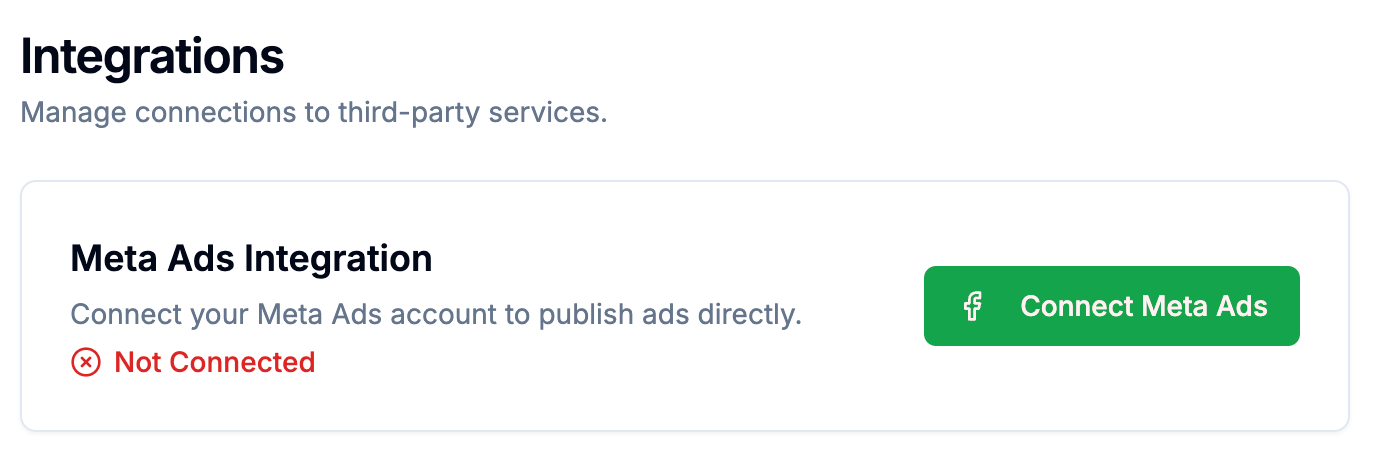
This will open a Facebook pop-up.
💡 Important: Be sure you’re logged into the correct Facebook account (the one that manages your business’s ad account) in the same browser.
You can double-check by visiting facebook.com in another tab before clicking the button.
4. Follow the Facebook Prompts
Facebook will ask for a few permissions. Accept all requested permissions to allow Winning Ads to manage your connected ad account.
Depending on whether you’ve connected an app like this before, your screen may look slightly different — that’s normal.
5. Select Your Ad Account
After permissions are granted, you’ll see a list of your ad accounts.
✅ Toggle the checkbox next to the account you want to use
💾 Click “Save Selected Account”
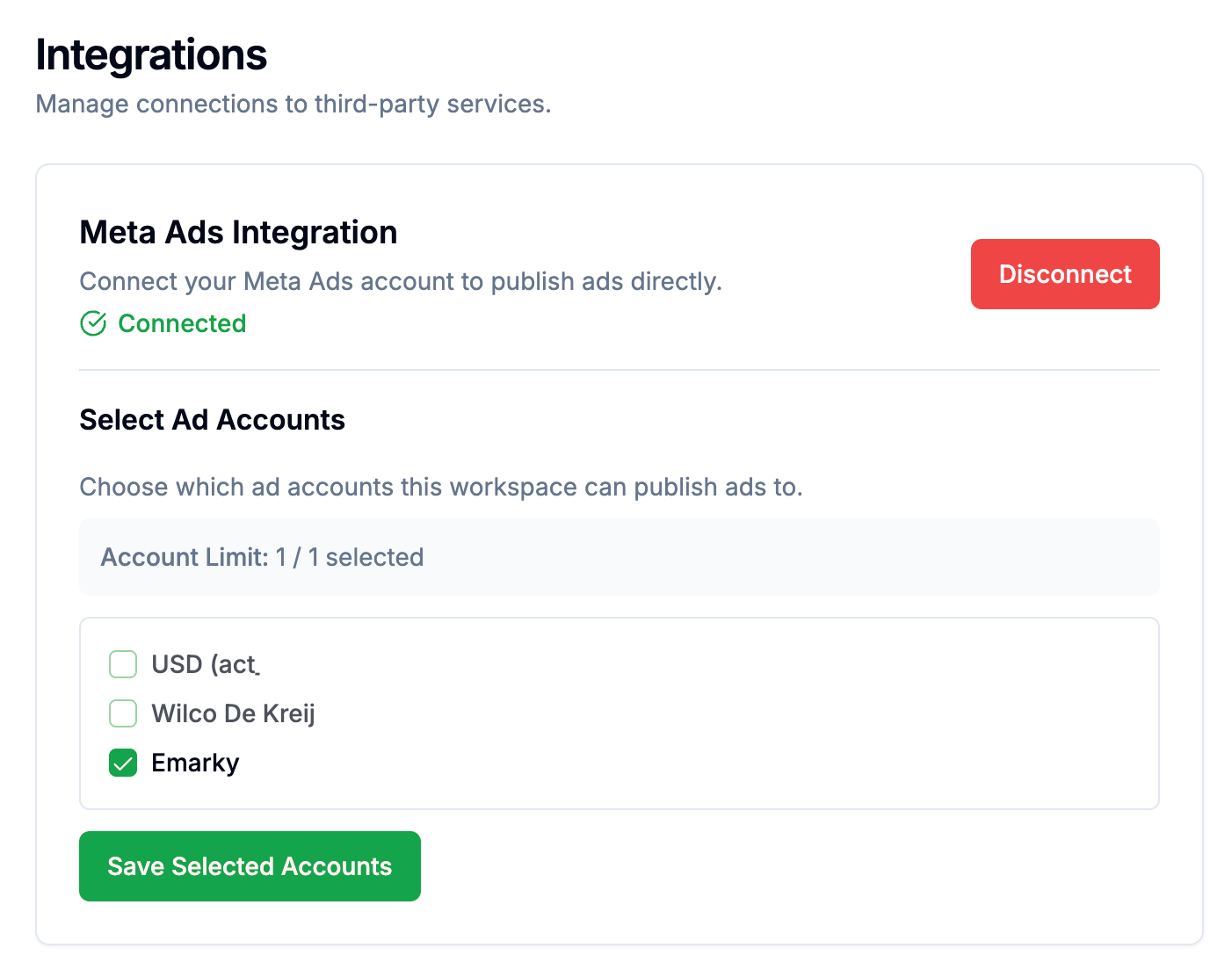
Once saved, your account is connected — and you’re ready to publish ads directly from within Winning Ads.
❌ How to Disconnect Your Facebook Account
Want to remove the integration?
Go back to the Integrations tab
Click “Disconnect” next to your connected Meta account
This will immediately unlink your Facebook account from Winning Ads.
🧩 Common Questions
Q: I don’t see my ad account listed — what should I do?
Double-check that:
You're logged into the correct Facebook profile
You have admin access to the ad account
You accepted all permissions when connecting