How to Publish Your Ads to Facebook from Winning Ads
Written By Wilco
Last updated 9 months ago
Once you've generated an ad you're happy with, you can publish it directly to your Facebook Ads account in just a few clicks — no copying and pasting required.
✅ Before You Begin
Make sure your Facebook Ads account is already connected to Winning Ads.
👉 Learn how to connect your Facebook account →
If you're not connected yet, you won't see your campaigns or ad sets during the publishing step.
🚀 How to Publish an Ad to Meta (Facebook)
1. Go to Your Project
From your dashboard, click into the project where your ad was created.
2. Find the Ad and Click “Publish”
Browse your list of generated ads and click the green “Publish” button on the one you'd like to push live.
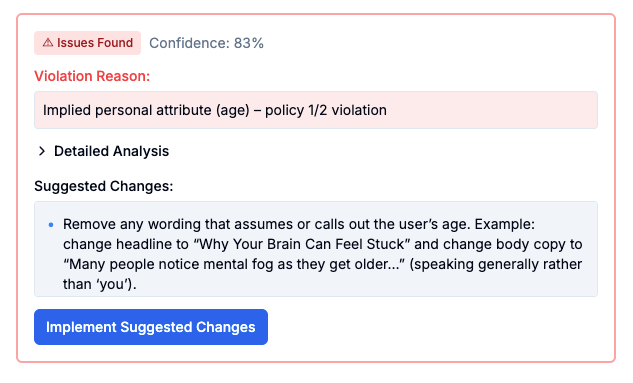
3. Let the Platform Check for Compliance
Once you click publish, Winning Ads will automatically check the ad for Facebook compliance using its own logic and best practices.
⚠️ Please Note: This check helps identify common issues, but only Meta can fully approve ads. Our check increases the chances of acceptance but doesn’t guarantee it.
You'll see a confidence score (e.g. “85% compliant”) along with feedback, if available.
4. Select Where the Ad Will Be Published
Once compliance is checked, you’ll need to:
Select your Facebook Ad Account
Choose your Facebook Page
Pick the Campaign
Choose the Ad Set inside that campaign
❗ Don’t See Your Campaign or Ad Set?
That means you haven’t created them yet in Meta.
To do this:
Go to business.facebook.com
Create a new Campaign and Ad Set
Then return to Winning Ads and refresh the page
Your new campaign and ad set will now appear in the dropdowns
5. Hit Publish to Meta
After selecting your Ad Account, Page, Campaign, and Ad Set, click the “Publish to Meta” button.
Your ad will now be submitted to Facebook, and you’ll be able to manage and monitor it directly from your Meta Ads Manager.
🧩 Frequently Asked Questions
Q: Can I create a new campaign or ad set directly from Winning Ads?
Not at this time. Campaigns and ad sets must be created in Meta first.
Q: What happens after I publish?
The ad is sent to Meta for review. If it’s approved, it will go live under the campaign/ad set you selected.
Q: Can I edit the ad after publishing?
You can edit the original ad in Winning Ads before publishing. Once published, edits must be made inside Meta.
Q: I don’t want my name to show as the advertiser
Your name only appears at the top of the ads inside the WinningAds platform. When you publish the ad, it will display under the Facebook Page you select in your Meta ad account.
Q: Not all of our ads get views or clicks. Is this normal? Some of them don’t have even one impression.
Yes, this is completely normal.
Facebook’s algorithms are extremely advanced and can quickly predict which ads are most likely to perform well. They do this by analyzing your ad, landing page, and even just a handful of early views or clicks. Based on that, Facebook will prioritize showing the ads it believes have the highest potential - while some others may receive little or no impressions at all.
This can feel strange at first, but it’s actually how the system is designed to work. It’s also the reason why it’s smart to launch multiple ad variations instead of just a few - so the algorithm has options to choose from.
We’ve tested this ourselves by turning off ads that were getting impressions, to try to “force” Facebook to give exposure to the others. The results confirmed that Facebook’s predictions were usually right: the ads it prioritized outperformed the ones that hadn’t received impressions.
In short: don’t worry if some ads don’t get views - that’s normal. The key is to give Facebook enough variations so it can focus on the winners.
⚠️ Common Issues/Errors
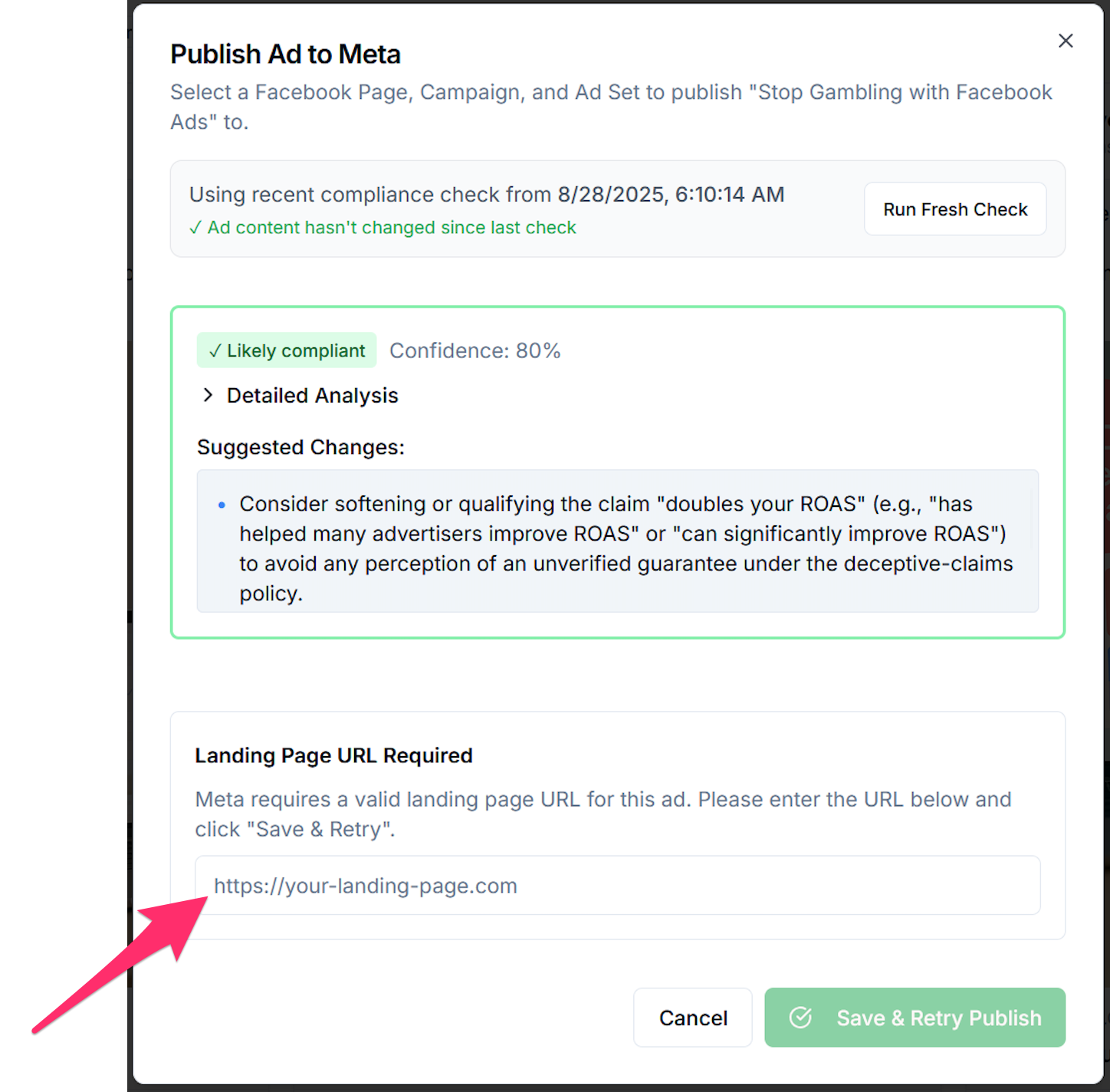
Meta requires a valid landing page URL to publish this ad
If you already added a landing page when creating your offer, it will be used automatically.
If not, you’ll see a field in the publishing pop-up (like in the screenshot below) where you can enter your landing page URL. Enter it there and click Save & Retry.
You can also add a landing page URL when creating a new offer, but note: this will only apply to ads created after that step (for that particular offer). It won’t update ads for previously added offers.
Related error:
If the Publish button isn’t clickable, it’s likely because the landing page URL hasn’t been added. Follow the same on-screen instructions and add the URL to proceed.
Compliance Issue – Violation of Facebook Policy
If our system detects a potential violation of Meta’s ad policy, you’ll see an error message before publishing. These are suggestions to help keep your ads compliant.
You can either click “Implement Suggested Changes” or proceed to publish the ad at your own risk.