Why do my ads look incorrect or irrelevant?
Written By Wilco
Last updated 6 months ago
If you have generated ads and noticed that the images don't look like your specific product—or perhaps they seem completely irrelevant—it is usually because the AI hasn't been told exactly which image represents your product.
Without specific guidance, the AI may treat all uploaded images as generic background assets. You need to explicitly label your main product shot, so the system knows exactly what your product looks like:
Watch this video for a step-by-step walkthrough of the fix:
The Root Cause
When our system scans your landing page, it attempts to import relevant images automatically. However, for the AI to understand what you are selling, you need to guide it. First, you must explicitly indicate which of these imported images should be used by selecting them. Second—and most importantly—you need to identify the specific photo that represents your product by selecting "Product Image" in the dropdown menu. Without this specific categorization, the AI may not know which object to focus on.
How to Fix It
Follow these steps to ensure your ads always feature your product correctly:
1. Navigate to the Assets Tab Go to your Project, click on the Offers tab (1), and select the specific Offer you are working on. Then, click on the Assets tab (2).
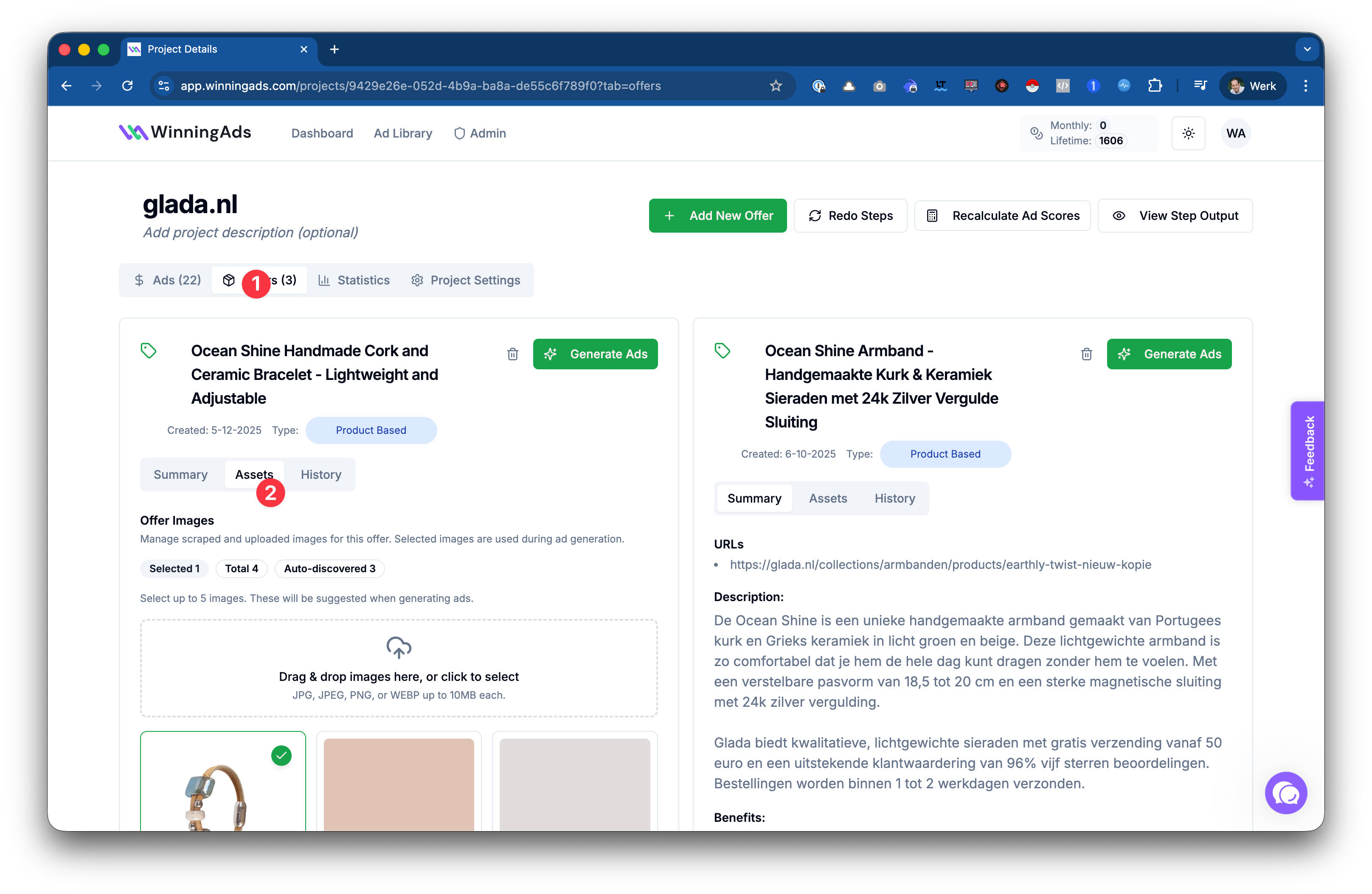
2. Select or Upload Your Product Image Look for a clear, high-quality image of your product. If the system didn't scrape one automatically, you can drag and drop your own image into the upload box.
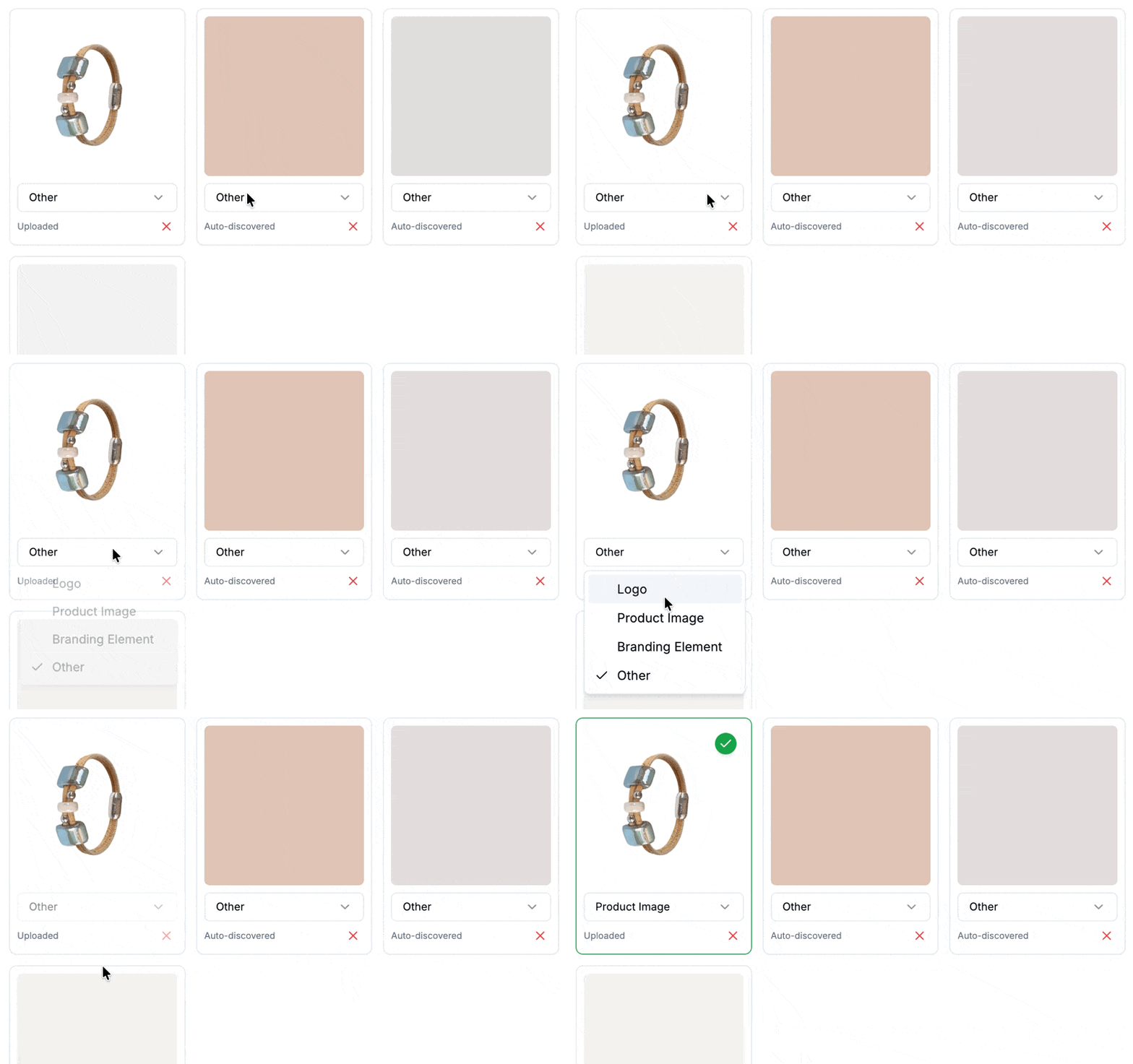
3. Categorize the Image (Crucial Step) Locate your main product image. By default, the dropdown menu below the image likely says "Other." Click this dropdown and select "Product Image."
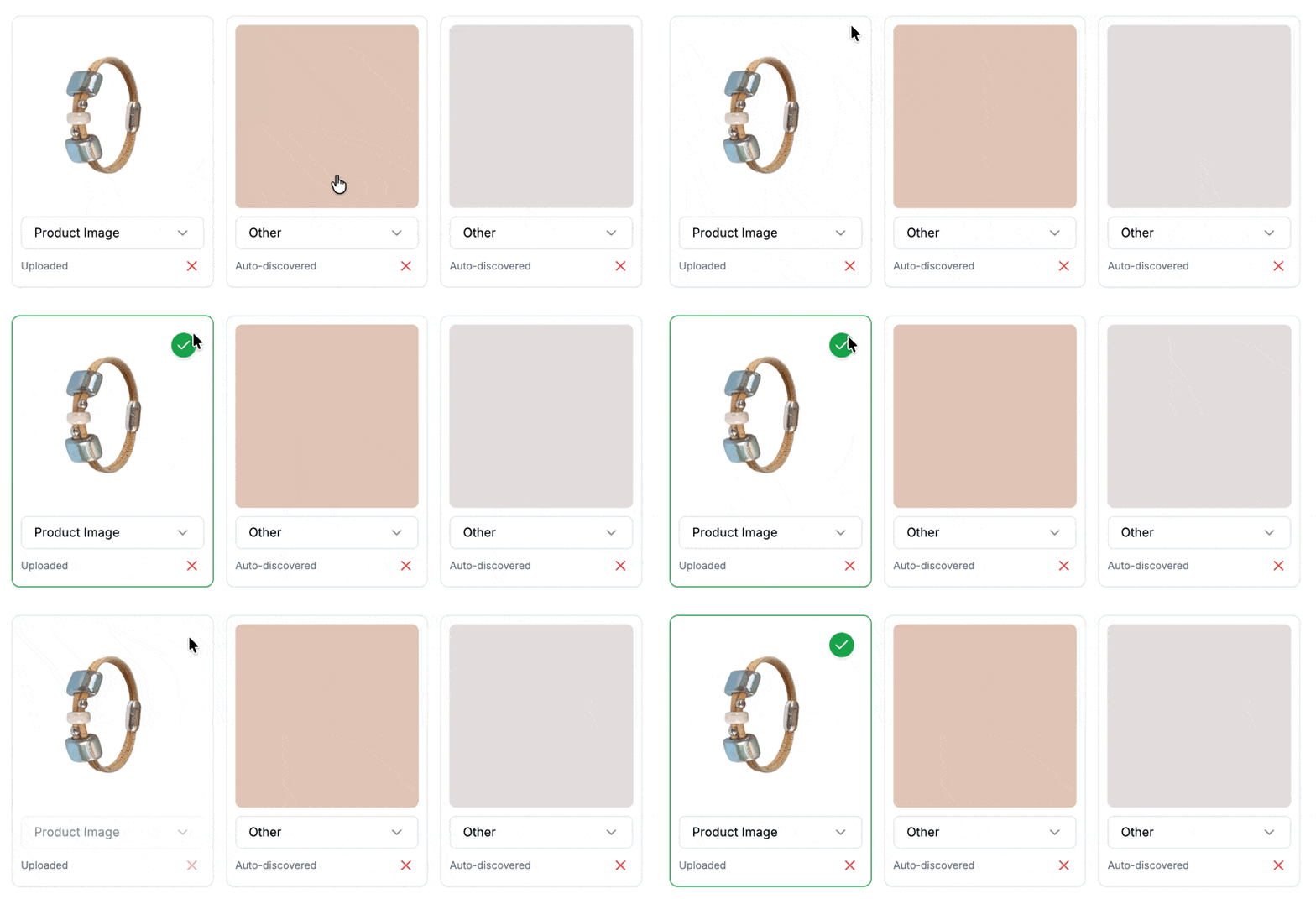
4. Ensure the Image is Selected Simply categorizing the image isn't enough; it must also be active for the next batch of ads. Make sure the image card is selected (it should have a green checkmark or border). If it is grayed out, the AI will ignore it.
Best Practices for Best Results
The "One Image" Rule: While you might have many photos, it is best to select only one image as the "Product Image." Selecting multiple images as the "Product Image" can confuse the AI about which item to focus on, often lowering the quality of the output.
Avoid Clutter: Use a focused product shot. Avoid images with messy backgrounds or too much text, as these make it hard for the AI to identify the product.
How to Verify It Worked
To verify the fix, click the Generate Ads button. Scroll down to the "Product Images" section in the settings window. You should now see your image thumbnail appearing there labeled as "Product."
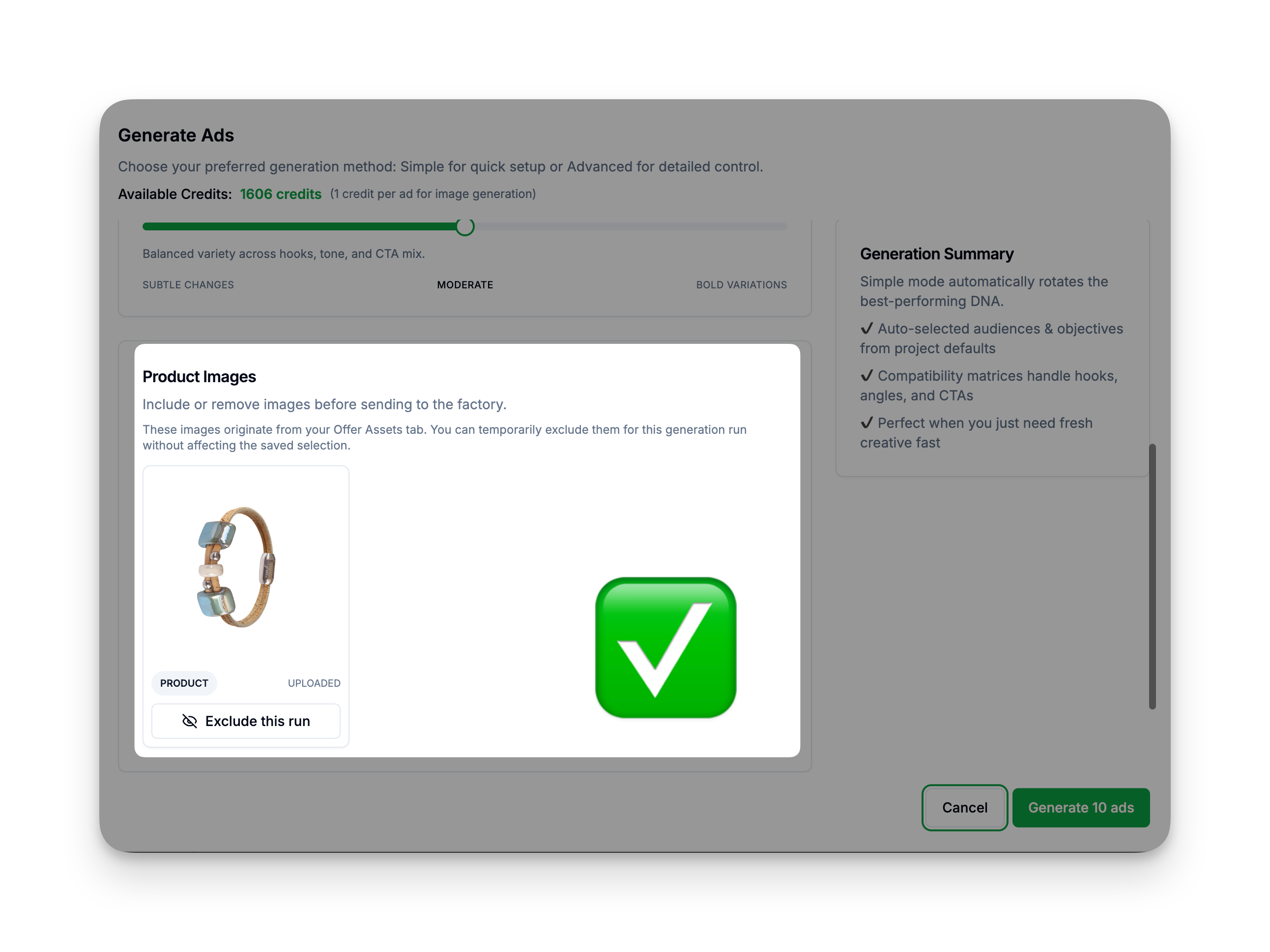
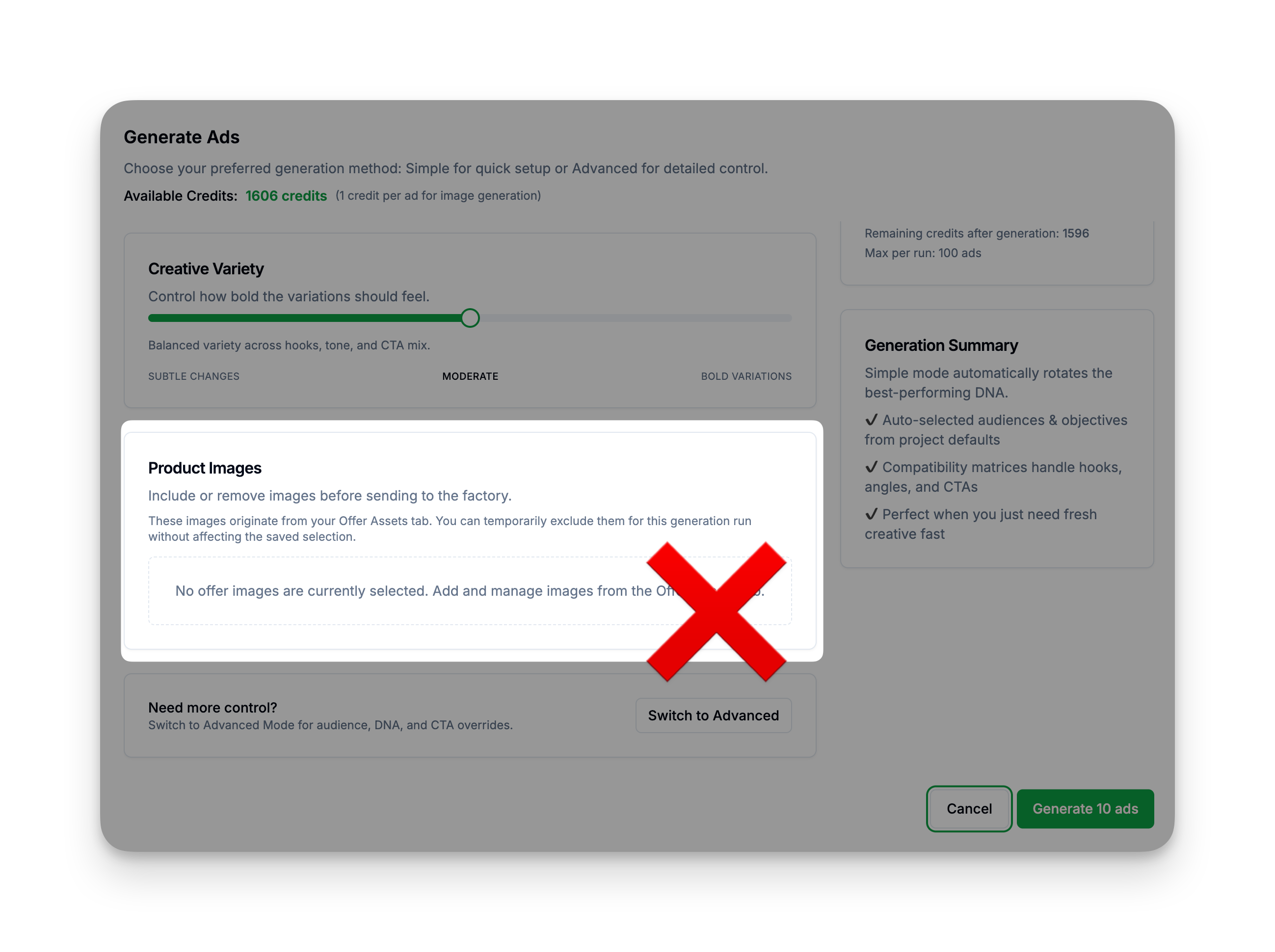
If you see your image there (like the top image), you are ready to generate! In case you don’t see an image there (like the bottom image), check the previous steps again.
Can I just use my own photo instead?
WinningAds is designed to generate high-converting AI visuals for you, so currently, it is not possible to start the generation process using your own finished ad image.
However, if you have a specific photo you really want to use, you can swap it into any ad after it has been generated using this workaround:
Open the Editor: Click on any generated ad to open the editing window.
Go to the Library: Click on the Library tab in the top right menu.
Upload Your Image: Drag and drop your image into the upload box.
Swap It In: Once uploaded, select your image and click the "Use Selected Image" button.
The platform will immediately replace the AI-generated visual with the photo you just uploaded, allowing you to publish the ad with your exact creative.